Configuring Account Settings
This topic describes how to configure features for your managed accounts, including service approval requirements, pricing visibility, and minimum term renewal settings.
Partner account Company Admins can configure these features individually for each managed account to control service ordering workflows and information visibility.
Feature configuration options
You can configure the following features for each managed account:
-
Minimum Term Renewal – Set the default behavior for automatic renewal of service contracts at the same duration and price. For more information, see Managing Minimum Term Renewal.
-
Service Approval Queue – Require partner approval before managed account users can order new services, make changes to existing services, or terminate services. For more information, see Service Approval Queue.
-
Show Pricing – Display retail pricing information to managed account users. When enabled, managed account users can view:
- monthly rates and term costs during service ordering.
- pricing details in service approval requests.
- cost estimates for service changes.
When disabled, all pricing information is hidden from managed account users, including the pricing section in order requests. For more information about pricing visibility, see What Users Can View and Access.
-
Cross Connect – Allow managed account users to order Cross Connects. This option is available only for Megaport supported managed accounts. For partner-supported managed accounts, the option is grayed out. For more information about Cross Connects, see Ordering a Cross Connect.
Navigating to feature configuration
During managed account creation
When you are creating a new managed account, the Feature Configuration prompt appears after you click Create, allowing you to configure features during account creation.
For step-by-step instructions on creating a managed account, see Creating a Managed Account.
For existing managed accounts
To access feature configuration for an existing managed account
- Log in to the Megaport Portal as a Company Admin.
-
Click Partner Admin in the left navigation.

-
From the Managed Accounts page, find the account you want to configure.
You can use the filter at the top of the page to focus the list, or sort by column.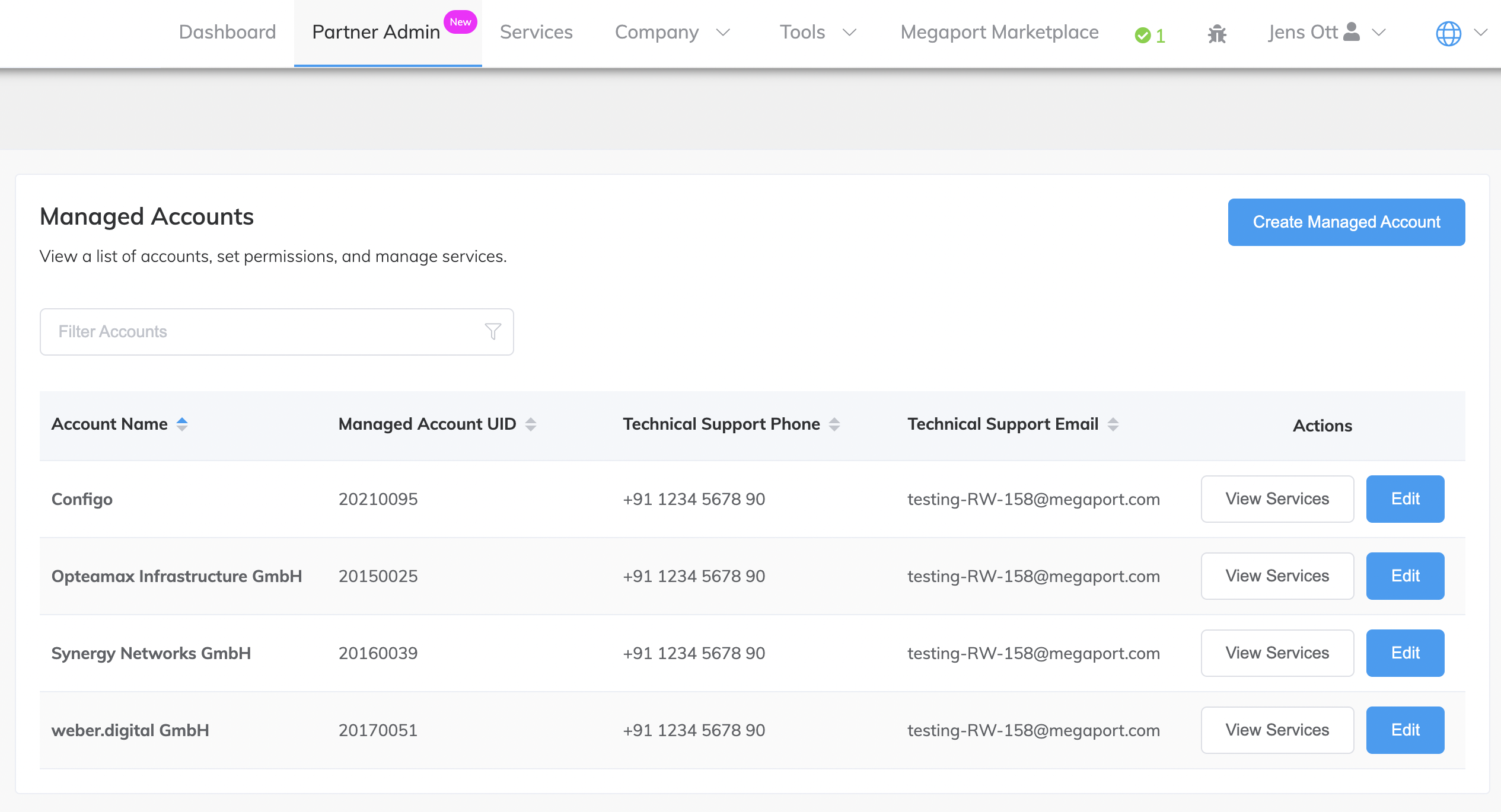
-
Click Edit next to the managed account.
The Account Overview for the managed account is displayed. -
Select the Feature Configuration tab.
The feature configuration settings for that managed account are displayed.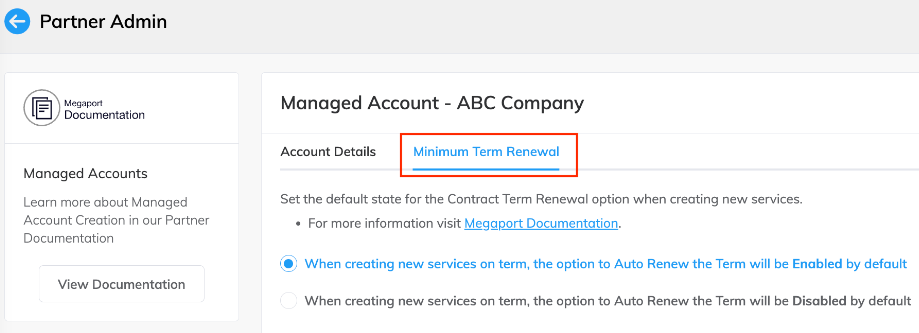
-
Activate or deactivate features as required.
Changes are saved automatically and take effect immediately.
Viewing feature settings across all managed accounts
The Partner Admin page displays a table view of all your managed accounts and the features enabled or disabled for each account, making it easy to review settings across accounts at a glance.
To view feature settings for all managed accounts
- Log in as a Company Admin.
- Click Partner Admin in the left navigation.
The table displays each managed account with columns showing whether each feature is enabled or disabled.