Understanding the Services Page
The Services page is a bird’s eye view of all your Megaport services. You can view, configure, and edit your Ports, MCRs, MVEs, and their connections (VXCs, IXs, and Megaport Internet connections). Each connection is grouped under its associated Port, MCR, or MVE.
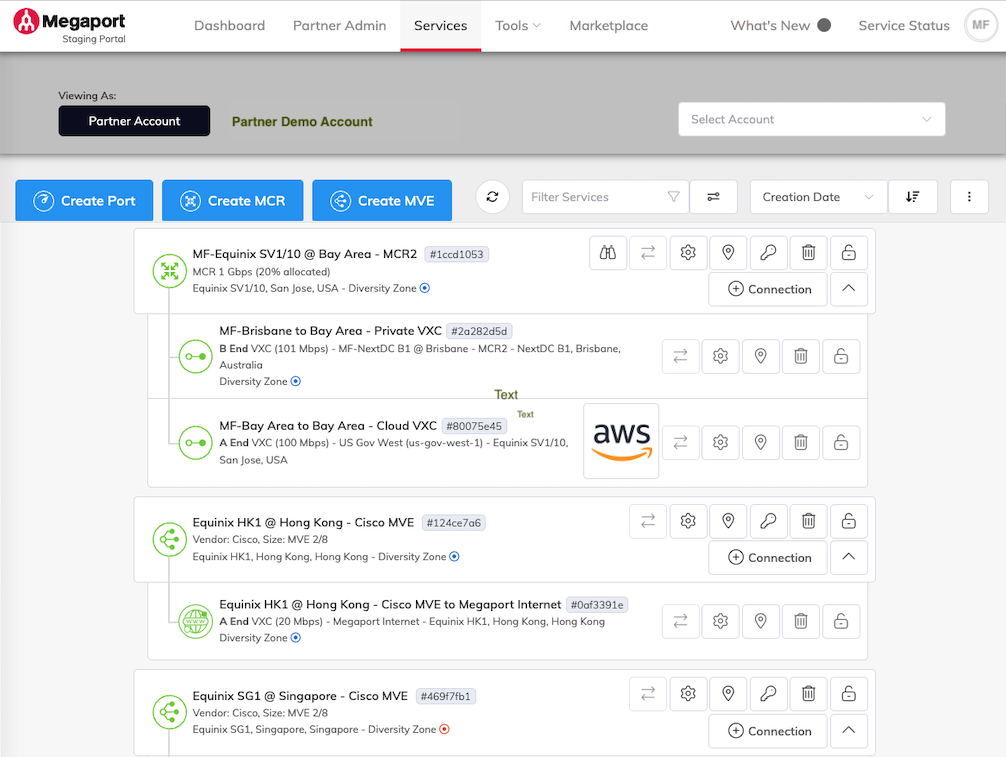
Partners can view, configure, and edit all services including Ports, MCRs, MVEs, and their connections (VXCs, IXs, and Megaport Internet) within both their own account and all of their managed accounts.
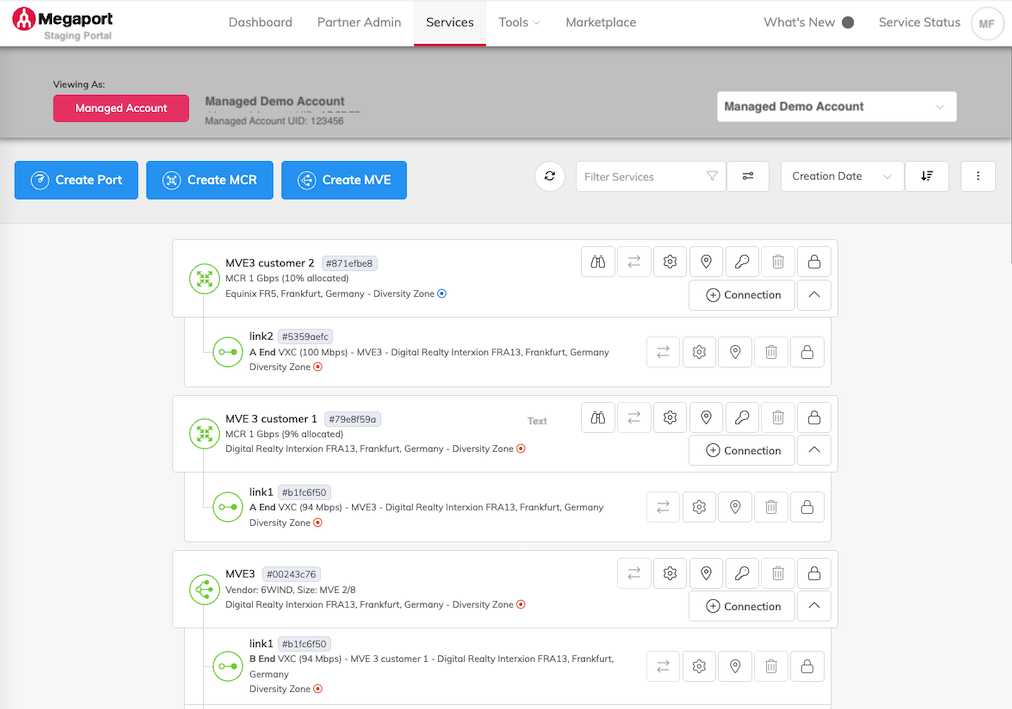
Managed account users can view, configure, and edit all services including Ports, MCRs, MVEs, and their connections (VXCs, IXs, and Megaport Internet) within their own managed account.
For more information, see Understanding the Services Page.
Filtering and sorting services
The filtering and sorting tools allow you to customize the Services page to help you find the information you need.
This feature is available to both partners and managed account users.

Filtering services
To narrow the services shown on the page, enter your text search in the Filter Services field. The filter will match against the name, location, and ID of the services. Any services matching your search will be highlighted.
Click  (View Additional Filters) to filter services by service type and contract term length, in addition to the text filter. For example, you can filter on Ports on a 12 month term. The filters will persist if you navigate away and return to the Services page in the same session.
The number of matching services is displayed below the Filter Services field. Click Clear Filters to remove all filters and display all services in the Services page.
Sorting services
You can change the order of the items on the Services page according to the following criteria:
- Creation Date – Sorts by the date they were created.
- Name – Sorts by name, in alphabetic order.
- Location – Sorts by country, and then by the location within that country.
You can sort in ascending or descending order.
Note
You can only sort Ports, MCRs, and MVEs, not their connections (such as VXCs or IXs), which are displayed in the order they were added.
You can also hide or show all the connections for a Port, MCR, or MVE. By default, the Portal shows all the connections unless there are more than 10, in which case they are collapsed initially. Click the Extra Actions kebab menu and select Expand All Services to expand all connections under a service, or select Collapse All Services to hide them.
Downloading a service inventory
The Services page provides a convenient way to get an inventory of all services associated with your account. The inventory includes all live and configured services, along with any services that have been decommissioned.
Partners can download an inventory of all services including Ports, MCRs, MVEs, and their connections (VXC, IXs, and Megaport Internet) within both their own account and all of their managed accounts. Managed account users can download an inventory of all services including Ports, MCRs, MVEs, and their connections (VXC, IXs, and Megaport Internet), within their own managed account.
To download an inventory of services
- On the Services page, click
 (Extra Actions) > Download Inventory Report.
The service inventory is saved in the comma-separated values (CSV) file format and downloaded to your Downloads folder.
Partner: Sample CSV

Managed account: Sample CSV

- You can import the CSV data into spreadsheets and databases.
- You can open the CSV file in any text editor.
Viewing and editing services
By default, services are listed by the date they were created. VXCs, IXs, and Megaport Internet connections are grouped under each Port, MCR, or MVE.
For more information, see Viewing and editing services.
Service details
Each service displays its speed or rate limit, location, and allocation percentage. Ports might also show a diversity zone. The allocation percentage reflects the amount of bandwidth defined for the respective service that has been assigned to VXCs.
For more information, see Service details.